Have you ever been writing an Outlook email and wished you could add the perfect emoji—but didn’t know where to find it or how to insert it quickly? You’re not alone.
Many Outlook users search for the easiest way to add emojis because a small symbol can make emails feel more friendly, expressive, and engaging without writing extra words. In short, you can insert emojis in Outlook by using the emoji keyboard shortcut Windows Key + . (Period) on Windows, the emoji picker on Mac, or the built-in emoji options available in Outlook’s email editor and mobile app.
Whether you’re sending a professional email, a team update, a customer message, or a casual reply, knowing the right emoji method saves time and improves communication. This guide explains how to insert emoji in Outlook, shortcuts for Windows and Mac, Outlook Web and mobile methods, troubleshooting tips, and exactly how to use emojis the right way in your emails.
What do how to insert emoji in outlook mean?
How to insert emoji in Outlook means adding small digital symbols, such as 😊, ❤️, 👍, and ✨, into your Outlook emails to express feelings, reactions, and tone. Emojis help readers understand the emotion behind your words and make messages feel more natural.
Different emojis can create different impressions depending on the situation. A smile emoji may show friendliness, while a heart emoji can express care or appreciation. Understanding emoji meanings helps you choose the right symbol for personal emails, workplace messages, newsletters, and online communication.
Here are some commonly used emojis when adding expression to Outlook messages:
| Emoji | Core meaning | Misread as | Best used when |
|---|---|---|---|
| 😊 | Happiness, friendliness, warmth | Fake politeness | Greeting someone or showing kindness |
| ❤️ | Love, care, appreciation | Too romantic in formal chats | Personal messages or expressing gratitude |
| 👍 | Approval, agreement, confirmation | Short or dismissive reply | Quick confirmations |
| 😂 | Laughter, humor, amusement | Not taking something seriously | Funny conversations |
| 🙏 | Thanks, respect, appreciation | Begging | Showing gratitude or respect |
| ✨ | Positivity, excitement, special feeling | Decoration only | Highlighting good news or important points |
😊 Smile Emoji
Meaning: Happiness, friendliness, and a warm positive tone.
Example 1: Thanks for your quick help 😊
Example 2: Hope you have a wonderful day 😊
❤️ Red Heart
Meaning: Deep love, affection, and emotional connection.
Example 1: I really appreciate you ❤️
Example 2: Sending lots of love ❤️
👍 Thumbs Up Emoji
Meaning: Agreement, approval, and a simple positive response.
Example 1: Your idea looks great 👍
Example 2: Everything is confirmed 👍
😂 Face With Tears of Joy
Meaning: Strong laughter and humorous reactions.
Example 1: That story was hilarious 😂
Example 2: I cannot stop laughing 😂
🙏 Folded Hands Emoji
Meaning: Gratitude, respect, and appreciation.
Example 1: Thank you for your support 🙏
Example 2: I truly appreciate your kindness 🙏
✨ Sparkles Emoji
Meaning: Excitement, positivity, and something special or impressive.
Example 1: Your presentation was amazing ✨
Example 2: New updates are here ✨
😍 Heart Eyes Emoji
Meaning: Strong admiration, excitement, or affection.
Example 1: This design looks amazing 😍
Example 2: I absolutely love this idea 😍
😉 Winking Face Emoji
Meaning: Playfulness, humor, or a friendly hidden message.
Example 1: I saved you a surprise 😉
Example 2: You already know the answer 😉
🔥 Fire Emoji
Meaning: Something impressive, exciting, or trending.
Example 1: Your new project is amazing 🔥
Example 2: This idea is really creative 🔥
💫 Dizzy Symbol Emoji
Meaning: Magic, excitement, or a dreamy positive feeling.
Example 1: Today was a beautiful experience 💫
Example 2: Your achievement is incredible 💫
How to use how to insert emoji in outlook the right way
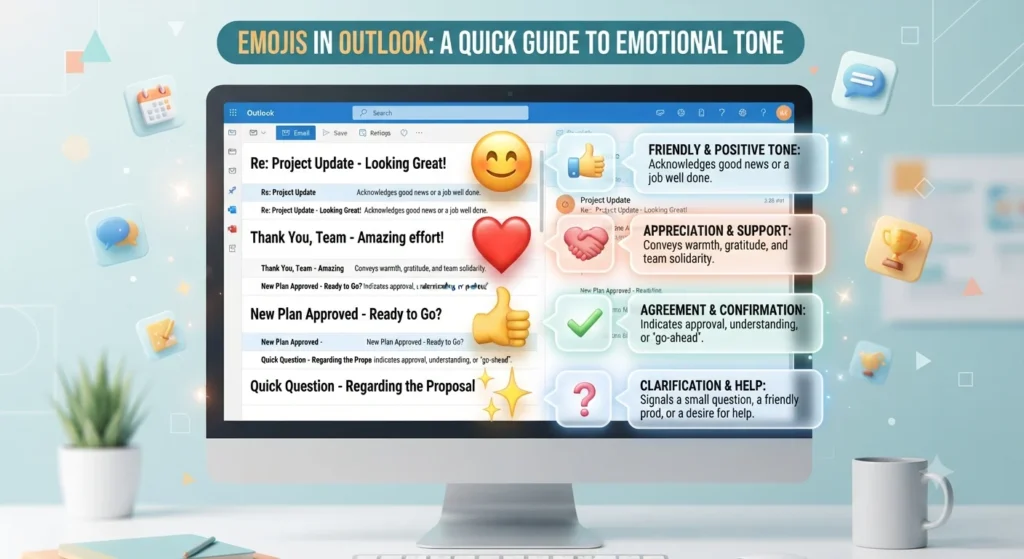
Using emojis in Outlook is all about matching the emotion with the situation. A well-placed emoji can make an email feel friendly and approachable, while too many emojis may distract from the main message.
In personal Outlook emails, emojis help show emotions that plain text cannot always express. A simple 😊 can make a greeting warmer, while ❤️ may add a caring touch when messaging someone close.
For professional emails, use emojis carefully. A small symbol like 👍 or ✨ can work well in friendly workplace conversations, team updates, or thank-you messages, but formal business communication usually needs a cleaner style.
WhatsApp-style Outlook usage
People who are familiar with WhatsApp emojis often bring the same expressive style into Outlook conversations. Emojis like 😊, 🙏, and ❤️ can make personal emails feel more natural.
Examples:
- Thanks for your help with this project 😊
- I really appreciate your support 🙏
- Congratulations on your achievement ✨
The key is keeping the message balanced so the emoji supports your words instead of replacing them.
Instagram-style Outlook usage
Instagram emojis are often used for aesthetics, captions, and creating a certain mood. The same idea can apply to Outlook newsletters, creative emails, and brand messages.
Creators and businesses may use emojis like ✨ or 🔥 to highlight important points, announce updates, or make content visually easier to scan.
Examples:
- New collection available now ✨
- This update brings exciting improvements 🔥
However, professional branding emails should maintain consistency and avoid adding too many symbols.
TikTok-style Outlook usage
TikTok emojis often carry humor, trends, and playful meanings. Some emojis can communicate jokes, reactions, or internet culture references depending on the audience.
For casual Outlook conversations, emojis like 😂 or 😉 can make messages feel more relaxed and entertaining.
Examples:
- That meeting was longer than expected 😂
- You already know the answer 😉
Always consider who will read the email before using trendy emoji styles.
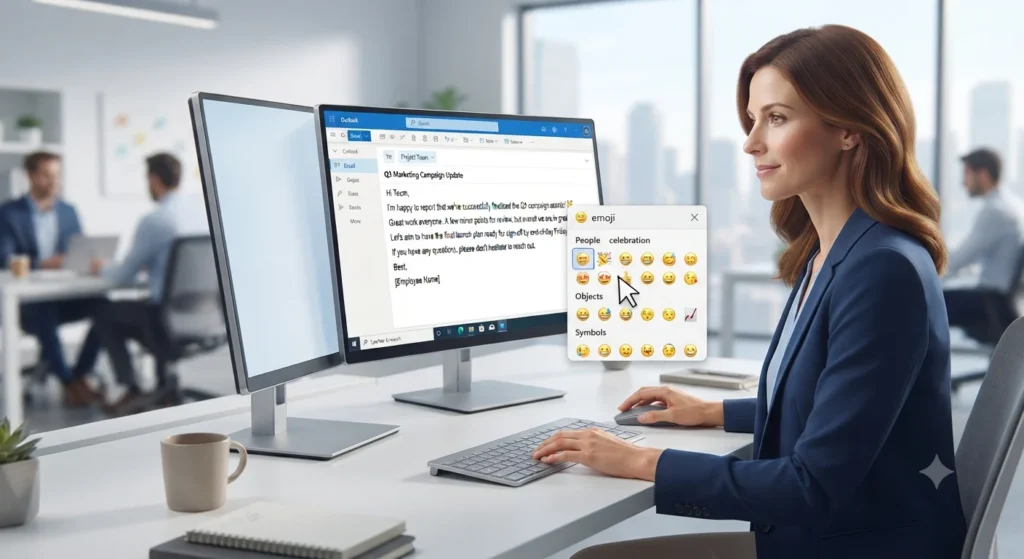
Simple ways to insert emojis in Outlook
Adding emojis to Outlook is quick and works across many devices.
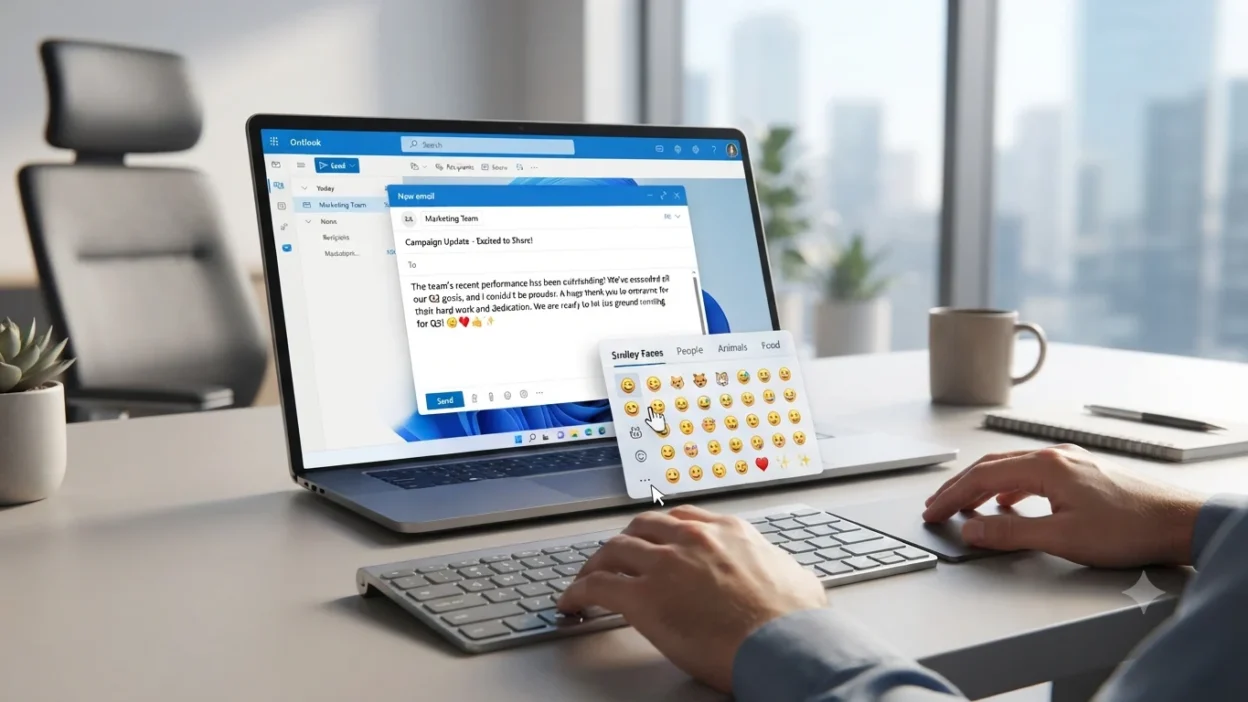
Method 1: Use Windows Emoji Keyboard
If you use Outlook on Windows:
- Open your Outlook email.
- Click where you want to add an emoji.
- Press Windows key + . (period) or Windows key + ; (semicolon).
- Choose your emoji from the emoji panel.
- Continue writing your email.
This is one of the fastest ways to insert emojis without searching online.
Method 2: Copy and paste emojis
You can also use copy paste emojis directly in Outlook. This method is useful when you already know the emoji you want.
For example:
- Friendly message: Thanks for your help 😊
- Appreciation message: Great work ✨
- Quick confirmation: Sounds good 👍
Copying emojis saves time, especially when writing multiple emails.
Method 3: Outlook mobile app
On Android and iPhone, inserting emojis is simple because your phone keyboard already includes an emoji section.
Open Outlook, create a message, tap the emoji button on your keyboard, and select the emoji that matches your tone.
Do’s and Don’ts of using emojis in Outlook
Do:
✅ Use emojis to make messages warmer and clearer.
✅ Match emojis with your relationship and audience.
✅ Use simple emojis for workplace conversations.
✅ Check how your email looks before sending.
Don’t:
❌ Add too many emojis in one professional email.
❌ Use confusing symbols that may change the meaning.
❌ Replace important words with emojis only.
❌ Use overly casual emojis in serious situations.
The best Outlook emails use emojis as a communication tool, not as a replacement for clear writing. A small emoji can add personality while keeping your message professional and easy to understand.
Red Circle Emoji: The 🔴 That Says Everything at a Glance
Best how to insert emoji in outlook combos — copy & paste
Using the right emoji combination can make an Outlook message feel more personal, expressive, and memorable. Instead of adding random symbols, choose combinations that match the emotion of your message.
These combinations work well for personal emails, friendly workplace conversations, and casual communication. You can simply copy and paste them into your Outlook messages.
Romantic Outlook emoji combos
👉 ❤️✨ — Use when sending a loving or heartfelt message to someone special.
👉 😍❤️ — Perfect for showing admiration and affection in a personal email.
👉 ❤️💫 — A sweet combination for expressing emotional connection and care.
Cute Outlook emoji combos
👉 😊✨ — Use when sharing happy news or a cheerful update.
👉 😊💫 — A friendly combination that adds warmth to a simple message.
👉 ✨😊❤️ — Good for sending a positive and caring note.
Flirty Outlook emoji combos
👉 😉✨ — Use for a playful message with a light and friendly tone.
👉 😍😉 — Works well when showing excitement or admiration.
👉 😉❤️ — A fun combination for casual personal conversations.
Missing someone Outlook emoji combos
👉 ❤️🙏 — Use when expressing care and appreciation for someone you miss.
👉 😊❤️ — A warm combination for reconnecting with someone.
👉 💫❤️ — A gentle way to add an emotional touch to a message.

Good night Outlook emoji combos
👉 ✨😊 — Use for a sweet and positive good night message.
👉 💫❤️ — A calm combination for ending a personal conversation.
👉 😊💫✨ — Perfect for a cheerful bedtime wish.
Emojis are not just decorative symbols; they help communicate feelings that words sometimes cannot fully express. Whether you are writing a personal email, replying to a colleague, or creating a friendly update, choosing the right combination makes your Outlook messages feel more natural.
The same emoji can also feel different depending on the platform. For example, emojis used in WhatsApp emojis, Instagram emojis, and Outlook may create slightly different impressions because users associate them with different styles of communication.
When using emoji combinations in Outlook, always think about your audience. A simple 😊 or 👍 can make a professional message feel friendly, while ❤️ and 😍 are better saved for personal conversations where emotional expression is appropriate.
Crying Emoji Copy and Paste: Every 😢 Ready in One Click
Trending how to insert emoji in outlook in 2026
Emoji communication continues to change as people find new ways to express emotions in digital conversations. In 2026, users are focusing more on emojis that add personality, positivity, and quick emotional signals to messages.
When adding emojis in Outlook, people often choose symbols that feel friendly, visually appealing, and easy to understand across different platforms. Emojis like 😊, ✨, 🔥, and 💫 are commonly seen in casual messages, creative communication, and online conversations.
Younger users, content creators, and everyday digital communicators often use these emojis to make messages feel more expressive. Their popularity can be seen across platforms where people communicate frequently, including WhatsApp, Instagram, TikTok, and email apps like Outlook.
Why emojis look different on iPhone vs Android
One common question about Outlook emojis is why the same emoji may appear slightly different on different devices.
The reason is that emojis are displayed using designs created by different operating systems and companies. Apple, Google, Microsoft, and other platforms create their own visual styles for the same Unicode emoji.
For example, an emoji sent from an iPhone may have a different appearance when opened on an Android phone or a Windows computer. The meaning usually stays the same, but the design, colors, or facial expression may look slightly different.
This is why understanding emoji meanings matters more than focusing only on the exact design.
Trending Outlook emojis in 2026
| Emoji | Why trending | Who uses it | Platform |
|---|---|---|---|
| 😊 | Adds warmth and friendliness to messages | Everyday users and professionals | Outlook, WhatsApp, Instagram |
| ✨ | Creates a positive and eye-catching feeling | Creators and casual communicators | Instagram, Outlook, TikTok |
| 🔥 | Shows excitement, creativity, or something impressive | Online communities and content creators | TikTok, Instagram, Outlook |
| 💫 | Gives messages a dreamy or special feeling | People sharing personal updates | WhatsApp, Outlook, social platforms |
Emoji styles continue to develop as digital conversations become more visual, with users adapting familiar symbols to match new communication habits and online trends.
FAQ
1. What is the most popular how to insert emoji in outlook emoji?
😊 is one of the most commonly used emojis because it works in many situations. It adds friendliness and warmth to both personal and casual professional emails.
2. What does 😊 mean from a girl or boy?
😊 usually shows happiness, kindness, or a friendly attitude. The meaning depends on the conversation and relationship between the people communicating.
3. Why do emojis look different on iPhone vs Android?
Emojis look different because Apple and Android use their own designs for the same emoji characters. The meaning remains similar, but the visual style may change.
4. Are how to insert emoji in outlook emojis used differently in other countries?
Yes, emoji meanings can vary slightly between cultures. Some symbols may feel more common or have different emotional meanings depending on local communication styles.
Conclusion
Adding emojis to Outlook emails is a simple way to make digital conversations feel more natural and expressive. The right emoji can add warmth, personality, and clarity to your message.
Whether you are writing a personal email or a friendly update, thoughtful emoji use helps your words connect better with readers.

Nora Ellison is a digital language writer specializing in emoji meanings, internet slang, symbols, and online communication, creating clear, accurate, and reader-friendly content.